Service Catalog
Overview
The Service Catalog workspace allows you to request, view, and manage Request Offering and Incidents. It lists all products and Request Offering available to you, such as requests for software, computers, or email, and groups them by category. You can track the progress of your requests through their lifecycle.
Service Catalog workspace
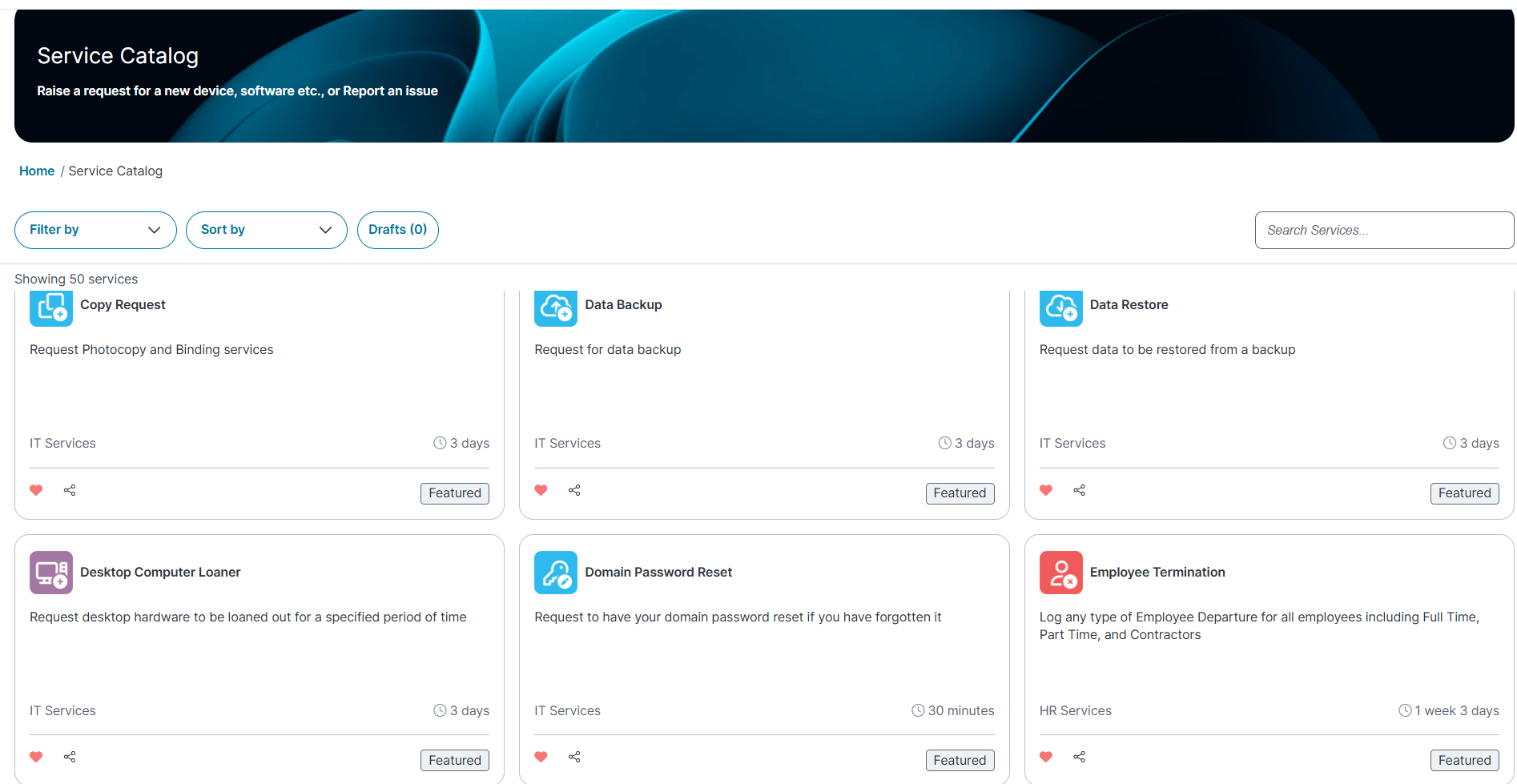
You can use the following features to view records within the workspace:
•Filter by category or presets : Filter Request Offering by department, Most popular, or Favorite (lists Request Offering marked as favorites) or preset to define the category such as (HR Services, Most Popular Request Offerings, New Incidents, IT Services, Facility Services).
•Group by category : Organize Request Offering by their category to streamline your search such as ascending or descending order.
•Save as draft : When creating a request, you can save it as a draft and submit it later. Requests that are pending submission are displayed as drafts. To view all drafts, click Drafts, the draft are displayed in top-right corner of the page and the entries in lists are sorted by the last modified date and time, rather than the original creation date.
•Search by keyword : Use the Search bar to find Request Offering using specific keywords.
You can also track the progress of your requests and incidents from theMy Items workspace.
 Creating a Generic Request
If the Generic Request has not been configured by your administrator, it will not appear in search results and cannot be created.
Creating a generic request
1.Log in to Neurons for ITSM.
2.On the Service Catalog, in search bar, type generic request.
The Generic request appears or the type of offering that is set by your administrator is displayed, by default.
3.In the Generic request page, enter the required details and click Submit to raise work order request.
Reporting a new incident
An Incident Report is submitted when an unexpected issue disrupts normal offering operations, such as system outages, application errors, or hardware failures. Unlike offering, incidents are urgent and require immediate attention to restore offering. Incident reports involve investigation, diagnosis, and resolution, often requiring follow-up actions to ensure full resolution. When you enter an issue title while raising a case, related links are displayed. You can review these links to potentially resolve the issue without submitting the incident.
1.From the workspace menu, click Service Catalog icon .
By default, the system displays all offering records for available products and services.
2.From the Filter by dropdown list, select Report New Incident.
The Service Record form appears.
3.If the issue does not match the available options, click New Incident. In the form displayed, enter information into the fields as required, and click Continue.
The Matching Panel page displays related articles that may help resolve the issue. Browse through the suggested solutions:
•If a solution works, click Resolve to close the incident.
• If the solution doesn’t work, click Back to explore other options.
4.If no solution works, fill out the fields in the form and provide detailed information in the Description field.
5.In the Urgency field, select the urgency level of the issue and click Save Incident.
The issue is an incident with an ID that you can track in the My Items workspace.
6.You may receive email updates from the Service Desk or Help Desk requiring additional information about the incident. If this occurs, respond within the period of time indicated in the email; otherwise, the incident automatically closes without resolution.
7.You can search for offering using the Search Services field. You cannot edit an incident once it is logged, but you can update it with notes or attachments (such as images or documents). You can also close an incident, regardless of its status. For details, see My Items.
Submitting and Managing Service RequestA Service Request is a formal request you make for a product, services, or access as part of regular organizational operations. This can include requests for hardware, software, system access, or other standard offering.
1.Log in to Neurons for ITSM.
2.From the workspace menu, select Service Catalogicon .
By default, the system displays all offering records for available products and services.
3.Use the Filter by or Sort by dropdown list, to narrow your search and select the desired offering.
The Service options form appears.
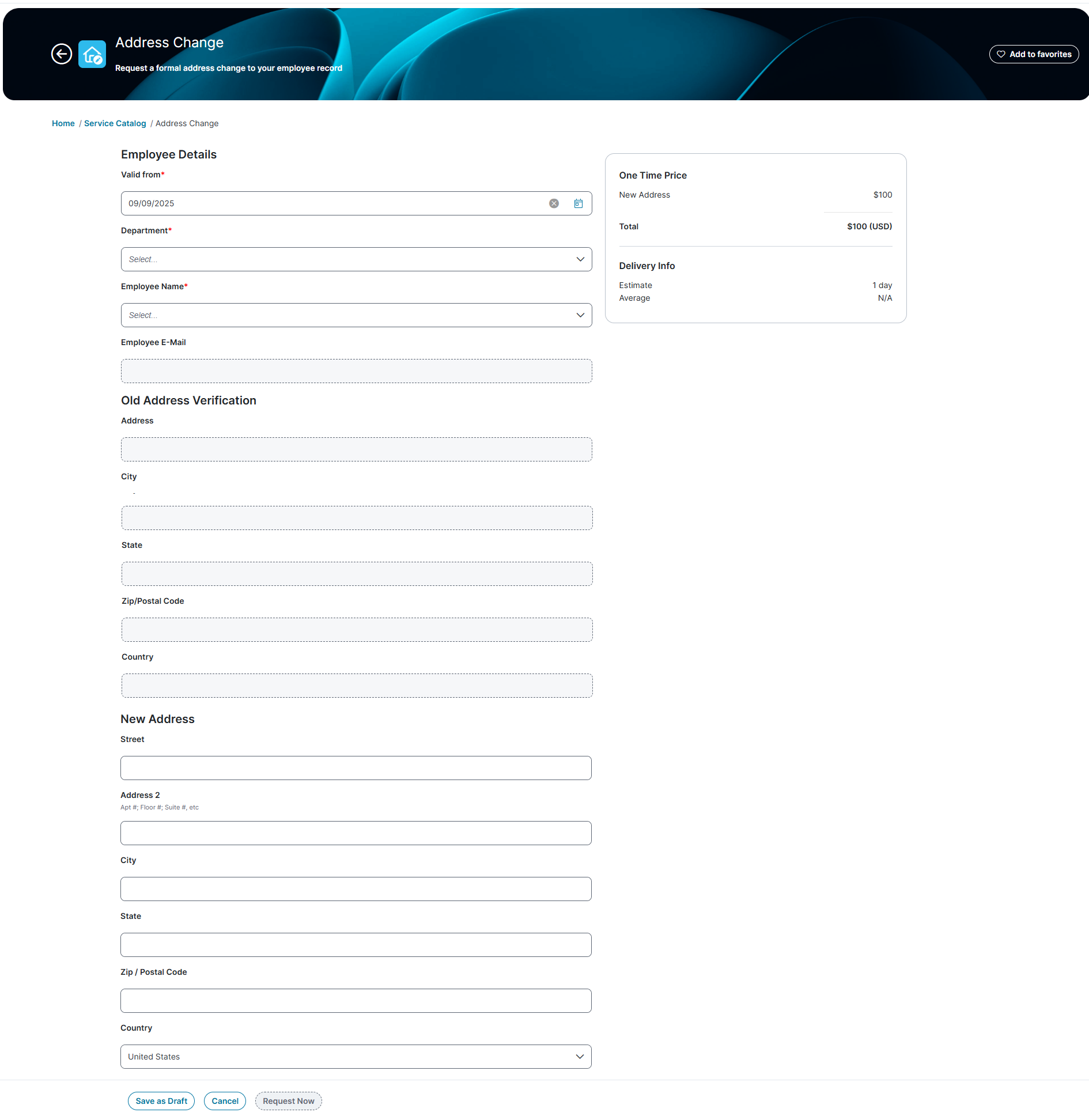
4.In the Service options form, enter the necessary information in the fields.
The layout of the form varies depending on the request type selected.
5.After entering all the required information, click Request Now to submit your request.
You can now track the request from My Items workspace.
Once you submit the request, you can't edit or delete the request.
6. You can track the status of the request from your My Items workspace. You may receive email updates from the Service Desk requiring additional information. Respond within the given time; otherwise, the request will automatically close without resolution.
7.If you need to update an in-progress offering request, you can add notes or attachments, such as images or documents. For more details, see My Items.
Working with Copy Link and Send an Email
You can use the Copy Link and Send Email features to share offering records to an other application, such as email.
1.Log in to Neurons for ITSM.
2.From the Service Catalog workspace, select a record and click either the Copy or share link icon.
icon.
•To copy the link: Select Copy Link. A message will confirm that the link has been copied to your clipboard.
•To send an email: Select Email  icon. The default email client opens with the offering record in the email body. Enter the recipient details and send the email.
Working with Favorites
The option is not enabled by default, it will only appear if your administrator has set it up for your role.
The Favorites category lists all offering that you have added to the Favorites, they appear at the top as tiles.
•To view all Favorites, select the Favorites option from the Filter By dropdown list.
•To add a offering to your Favorites, in the Service Catalog workspace, click the Favorites icon.
A pop-up message confirms the offering has been added.